
What are output styles? Claude Code’s Output Styles change not what the AI knows but how it responds. They set Claude’s role, tone, and output format by directly modifying the system prompt. Working on the same code, the difference is whether the answer just silently executes or weaves in explanations along the way.
An honest confession: I’m writing this very post with the Explanatory and Learning output styles turned on. To compare firsthand how Claude’s response tone differs when I’m just writing code versus when I’m shaping the texture of prose, I deliberately worked while switching between the two. So this post is less a transcription of the docs and more a record of what I confirmed while actually changing styles.
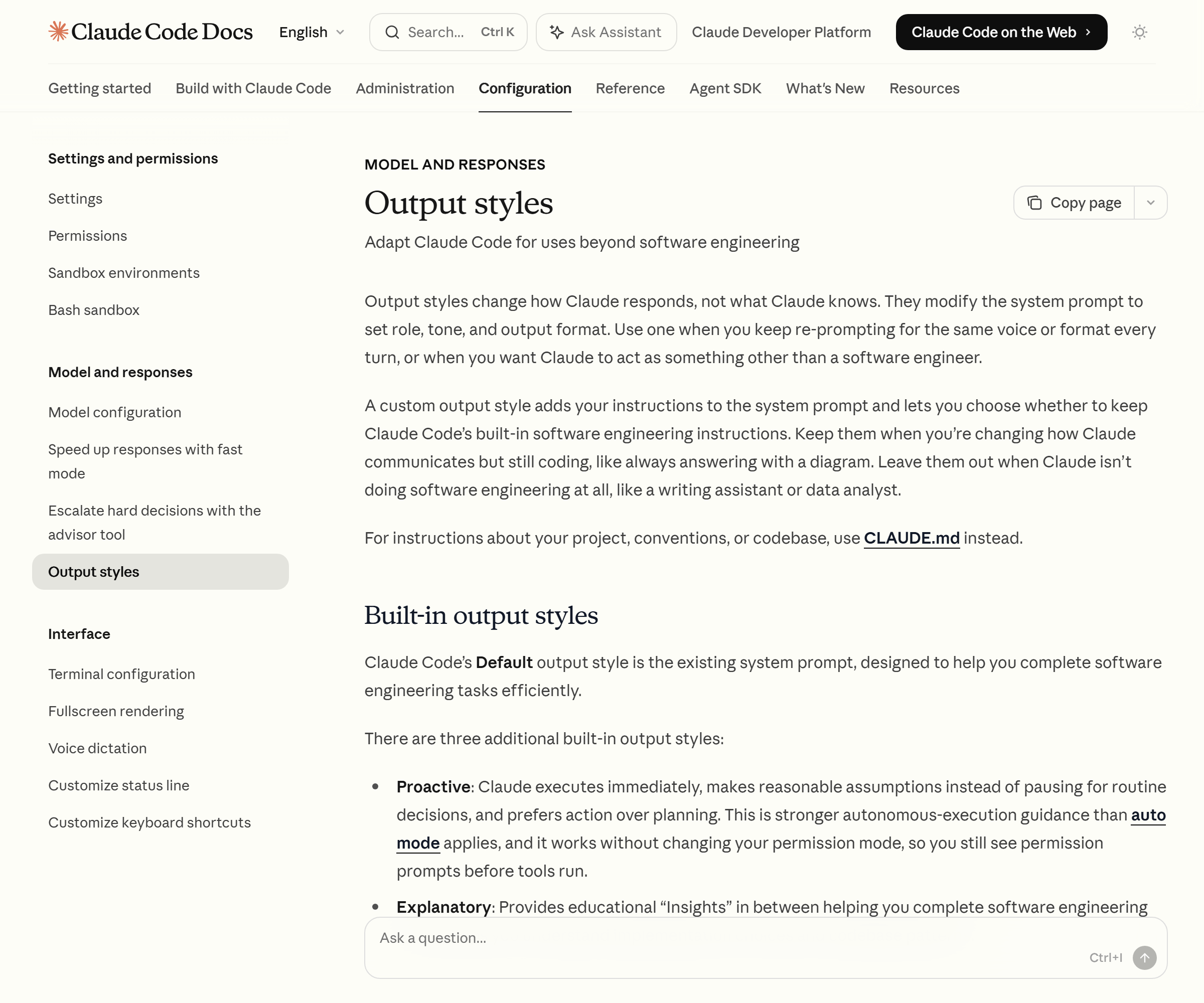
What exactly do output styles change
Let me start with the core. Output styles don’t touch Claude’s knowledge or ability. What they change is the manner of response. Internally, they modify the system prompt to set the role, tone, and output format. So even when you ask the same question, in one style you get just the resulting code, and in another the “reason this part was handled this way” comes along with it.
This difference is bigger than you’d think for a solo developer. In familiar territory, a lean response is fast; with a library you’re touching for the first time, the version with explanations attached raises your learning efficiency. It means that even while using the same Claude Code, you can tune the density of the answer to the nature of the task.
The four built-in output styles
Claude Code has four built-in output styles. Organized per the official docs, they are as follows.
- Default: the standard mode optimized for software-engineering work. Without any special configuration, it focuses on performing code work efficiently.
- Proactive: a mode that leans toward immediate execution. It performs common decisions automatically without asking the user. That said, the permission mode itself stays as-is, so it doesn’t step outside the range of your execution permissions.
- Explanatory: it provides educational “Insights” along the way as it codes. It explains why it wrote things this way and what options there were.
- Learning: a mode that collaborates with the user. Claude doesn’t write all the code; it asks the user to write some parts directly. Here it uses the
TODO(human)marker to signal “fill this part in yourself.”
When I actually turned on Explanatory mode and polished a small script, a short comment like “I split this function out for this reason” came attached, which made it far easier to follow the decision-making than when I just received the result. Learning, on the other hand, takes one more bit of effort, but thanks to the TODO(human) marker the spots I had to touch myself were clear, so it didn’t have that feeling of being clumsily spoon-fed. From a developer’s standpoint, a distinct sense of “coding while learning” emerges.
How to change it — /config is the answer
Changing the style is simple.
- Run the
/configcommand in Claude Code. - Find the Output style item in the menu and select the style you want.
The selected value is saved to the outputStyle field of the project-local settings, .claude/settings.local.json. If you picked Explanatory, for example, "outputStyle": "Explanatory" is written to the file. Editing this value directly, without going through the menu, applies it the same way.

There’s one thing you must remember. Because the output style is part of the system prompt, it’s read once when a session starts. That is, even if you change the style mid-task, it isn’t reflected in that session right away. You have to clear the conversation with /clear or start a new session for the change to take effect. At first I too kept going right after changing it, wondered “why isn’t it changing,” and floundered for a while — I only confirmed the tone had shifted in a new session.
Caution — don’t use the old /output-style command anymore
This is the spot where following an old blog post gets you stuck. There used to be a standalone command, /output-style, but this command was deprecated in v2.1.73 and fully removed in v2.1.91. Type /output-style in a current version now and it won’t work.
Today there are only two right answers: use /config, or edit the outputStyle value in settings directly. If an outdated guide that turns up in search recommends /output-style, you can just skip that part.
Making a custom output style
If the four built-ins aren’t enough, you can make your own. A custom output style is written as a Markdown file. The structure is frontmatter at the top of the file, with the instructions Claude should follow written below it.
The save location is split into three tiers by priority.
- User level:
~/.claude/output-styles/— applied commonly across all my projects. - Project level:
.claude/output-styles/— applied only to that project. - Managed policy level: a policy-driven style distributed at the organization level.
In the frontmatter you put name and description, and with an option like keep-coding-instructions: true|false you decide whether to keep the default software-engineering instructions. Keep it if you want to leave the code-work character intact and just layer on a tone; turn it off if you want to assign a completely different role.
How is this different from CLAUDE.md and --append-system-prompt
Many people confuse these three lookalikes, so let me sort them out.
| Feature | How it works | Scope |
|---|---|---|
| Output style | Modifies the system prompt itself (role, tone, format) | Per session, saved in settings |
| CLAUDE.md | Adds as a message the project rules and codebase context | Per project |
--append-system-prompt |
Adds one-off instructions to a single run | That one run only |
Summing up the three in one line: if you want to change the response’s fundamental character wholesale, use an output style; to inform it of project context, use CLAUDE.md; to make it behave differently just this once, use --append-system-prompt. The three aren’t in competition — they’re tools at different layers. This distinction is spelled out as-is in Anthropic’s official docs (code.claude.com), so whenever you’re confused, just recall this one table.
Wrap-up and practical tips
- Leave familiar work on Default or Proactive, and switch to Explanatory mode only when learning a new technology — you get both speed and learning.
- Learning intentionally leaves
TODO(human)behind. Take it not as “why won’t it write it all” but as “a signal to try this part yourself.” - If you changed the style but the responses stay the same, run
/clearand start again. It’s read only once at session start. /output-stylehas been removed. Just remember/configor editing settings directly.- If you have a tone you use often, save it as a custom file in
.claude/output-styles/and you won’t have to explain it anew each time.
Writing this post while going back and forth between Explanatory and Learning, I got the impression that an output style is less a simple tone setting and more a switch that decides “what kind of colleague you make Claude.” Once you’ve set it to fit your own workflow, everyday coding gets a little less lonely and a little more clear.
Sources: Claude Code official docs — Output styles, Claude Code official docs — Status line